
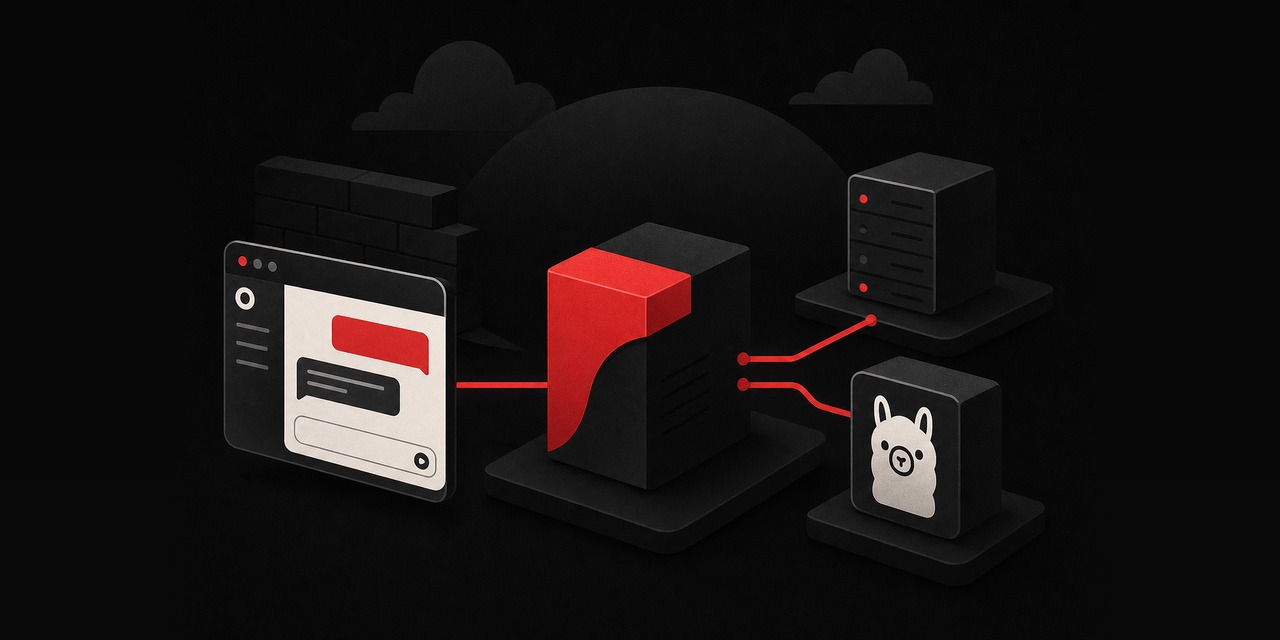
Leaving Ollama exposed on a public port is a mistake you tend to make exactly once. The safer pattern is to run Open WebUI with Ollama on a VPS, keep both services private, and publish only an Nginx reverse proxy with HTTPS (and optional basic auth) in front.
This walkthrough uses a simple layout on Ubuntu or Debian. Ollama runs on localhost. Open WebUI runs on localhost. Nginx is the only internet-facing entry point.
You’ll also add firewall rules and run a few quick hardening checks.
What you’ll build (and why this layout works)
- Ollama bound to
127.0.0.1:11434(not reachable from the internet) - Open WebUI bound to
127.0.0.1:3000 - Nginx listening on
80/443and proxying to Open WebUI - TLS via Let’s Encrypt so you don’t type passwords over HTTP
- Optional basic auth to stop random scans from even reaching your login page
On a typical CPU VPS, Open WebUI stays responsive while Ollama does the heavy lifting.
If you plan to run larger models or support multiple active users, size up early. You can also move Ollama to a GPU machine.
A HostMyCode VPS is a solid starting point for small-team usage. For heavier loads, a larger VPS or dedicated server is usually the better fit.
Prerequisites
- Ubuntu or Debian server with SSH access (root or a sudo user)
- A domain name pointing to the server’s IP (recommended)
- Ports 80 and 443 allowed inbound
- At least 2 vCPU / 4 GB RAM for a basic CPU-only setup (8 GB RAM feels much better)
If you need help with DNS before you start, HostMyCode offers domain and DNS management at HostMyCode domains.
Step 1: Update the server and install packages
Update the base system. Then install Nginx and the tools you’ll use for TLS and basic auth.
sudo apt update
sudo apt -y upgrade

sudo apt -y install nginx ufw curl ca-certificates certbot python3-certbot-nginx apache2-utils
apache2-utils is only here for htpasswd. You’re not installing Apache.
Step 2: Install and lock down Ollama (localhost only)
If Ollama is already installed, skip to the binding check. Otherwise, install it with the upstream script.
curl -fsSL https://ollama.com/install.sh | shNext, confirm Ollama is listening only on localhost. Open WebUI should reach it internally.
The internet should not.
ss -lntp | grep 11434 || trueYou want 127.0.0.1:11434 (or localhost), not 0.0.0.0:11434.
If Ollama is listening on 0.0.0.0 (fix it)
On most Linux installs, Ollama runs under systemd. Add a service override.
This forces a localhost bind by setting OLLAMA_HOST.
sudo systemctl edit ollamaPaste:
[Service]
Environment="OLLAMA_HOST=127.0.0.1:11434"
Reload systemd and restart the service:
sudo systemctl daemon-reload
sudo systemctl restart ollama

ss -lntp | grep 11434
For a deeper Ollama service setup, see our related guide: Install Ollama on Ubuntu VPS With Systemd.
Step 3: Run Open WebUI (Docker, bound to localhost)
Open WebUI is typically deployed as a container. The key detail is the port bind.
Publish it on 127.0.0.1, not your public interface. Nginx will be the only component that exposes it to the internet.
Install Docker
On Ubuntu/Debian, the distro packages are fine for this setup:
sudo apt -y install docker.io
sudo systemctl enable --now docker
Add your user to the docker group (optional, but convenient). Log out and back in afterward.
sudo usermod -aG docker $USERStart Open WebUI
Create a persistent directory for Open WebUI data:
sudo mkdir -p /opt/open-webui
sudo chown -R $USER:$USER /opt/open-webui
Run the container and point it at your local Ollama:
docker run -d \
  --name open-webui \
  --restart unless-stopped \
  -p 127.0.0.1:3000:8080 \
  -e OLLAMA_BASE_URL=http://127.0.0.1:11434 \
  -v /opt/open-webui:/app/backend/data \
  ghcr.io/open-webui/open-webui:latest
Confirm it’s running and responding on localhost:
docker ps --format 'table {{.Names}}\t{{.Status}}\t{{.Ports}}'

curl -sI http://127.0.0.1:3000 | head
If curl prints headers (even a 302 redirect), the app is reachable locally.
Pull a small model to validate end-to-end
From the server, pull a lightweight model and run a quick prompt. Starting small proves the wiring.
It also keeps your CPU from turning into a space heater.
ollama pull llama3.2:1b
ollama run llama3.2:1b "Say hello in one sentence."
Limitations to keep in mind:
- CPU-only inference slows down fast as model size increases.
- RAM matters. If the box starts swapping, latency gets painful.
- Concurrency is limited. One long generation can stall other users.
If you want to understand how quantization changes memory use and speed, this companion tutorial helps you pick sensible sizes: llama.cpp Quantization: Pick Q4 vs Q5 vs Q8.
Step 4: Configure UFW firewall (only expose web ports)
Don’t publish Ollama or Open WebUI directly. Expose SSH plus the reverse proxy—nothing else.
sudo ufw allow OpenSSH
sudo ufw allow 80/tcp
sudo ufw allow 443/tcp
sudo ufw enable
sudo ufw status verbose
Sanity check from the server. These should still be reachable locally.
UFW controls inbound public traffic, not localhost access.
curl -sI http://127.0.0.1:3000 | head
curl -sI http://127.0.0.1:11434/api/tags | head
Step 5: Add an Nginx reverse proxy for Open WebUI
Create an Nginx server block. Swap chat.example.com for your domain.
sudo nano /etc/nginx/sites-available/open-webui.confPaste:
server {
    listen 80;
    server_name chat.example.com;

    client_max_body_size 25m;

    location / {
        proxy_pass http://127.0.0.1:3000;

        proxy_http_version 1.1;
        proxy_set_header Host $host;
        proxy_set_header X-Real-IP $remote_addr;
        proxy_set_header X-Forwarded-For $proxy_add_x_forwarded_for;
        proxy_set_header X-Forwarded-Proto $scheme;

        proxy_read_timeout 300;
        proxy_send_timeout 300;

        # WebSocket support (used by many web apps)
        proxy_set_header Upgrade $http_upgrade;
        proxy_set_header Connection "upgrade";
    }
}
Enable the site and reload Nginx:
sudo ln -s /etc/nginx/sites-available/open-webui.conf /etc/nginx/sites-enabled/open-webui.conf
sudo nginx -t
sudo systemctl reload nginx
You should now be able to open http://chat.example.com and see Open WebUI (still plain HTTP for the moment).
If you get an Nginx error, start with the error log:
sudo tail -n 100 /var/log/nginx/error.logStep 6: Enable HTTPS with Let’s Encrypt (Certbot)
With the Nginx plugin, Certbot updates your server block. It also adds TLS settings automatically.
sudo certbot --nginx -d chat.example.comPick the redirect option so HTTP upgrades to HTTPS.
Verify auto-renewal:
sudo systemctl status certbot.timer --no-pager
sudo certbot renew --dry-run
If you prefer a simpler TLS proxy for single-app servers, you may like Caddy. We cover that flow here: Set Up Let’s Encrypt With Caddy for a VPS Site. For this guide, we’ll stick with Nginx.
Step 7 (Optional): Add basic auth in front of Open WebUI
Open WebUI includes its own user system. Basic auth adds a separate “front door”.
This cuts down on drive-by scans and credential-stuffing attempts. It works well when the UI is only for you or a small team.
Create an htpasswd file
sudo mkdir -p /etc/nginx/auth
sudo htpasswd -c /etc/nginx/auth/open-webui.htpasswd webuiadmin
You’ll be prompted for a password.
Update the Nginx site
Edit your server block:
sudo nano /etc/nginx/sites-available/open-webui.confInside location /, add:
auth_basic "Restricted";
auth_basic_user_file /etc/nginx/auth/open-webui.htpasswd;
The location block will look like this (showing only the key parts):
location / {
    auth_basic "Restricted";
    auth_basic_user_file /etc/nginx/auth/open-webui.htpasswd;

    proxy_pass http://127.0.0.1:3000;
    ...
}
Reload Nginx:
sudo nginx -t
sudo systemctl reload nginx
If you want a dedicated pattern for locking down an Ollama-facing service with Nginx, this related guide is useful: Run Ollama Behind Nginx With Basic Auth.
Step 8: First-run setup in Open WebUI
Open https://chat.example.com. You’ll:
- Create the admin account in Open WebUI
- Confirm it detects Ollama (because you set
OLLAMA_BASE_URL) - Select your model (the small one you pulled is a good first test)
If Open WebUI can’t see Ollama, it’s usually one of three things: the URL is wrong, Ollama isn’t running, or Ollama is bound to the wrong interface.
Quick diagnostics
- Is Ollama running?
sudo systemctl status ollama --no-pager - Does Ollama answer locally?
curl -s http://127.0.0.1:11434/api/tags | head - Can the container reach localhost? On Linux, a container’s
127.0.0.1is the container itself, not the host.
You can bind Open WebUI to host localhost for inbound traffic. But the container still needs a route to the host to reach Ollama.
Ifhttp://127.0.0.1:11434doesn’t work from inside the container, pointOLLAMA_BASE_URLat the Docker host gateway instead.
On modern Docker,http://host.docker.internal:11434usually works. On Linux, it sometimes needs an extra mapping.
A fallback is the default bridge gateway IP (often172.17.0.1). That value can vary by host.
Don’t guess. Test from inside the container first.
Change the URL only if you have to.
docker exec -it open-webui sh -lc 'wget -qO- http://127.0.0.1:11434/api/tags || true'If that fails, try:
docker exec -it open-webui sh -lc 'wget -qO- http://host.docker.internal:11434/api/tags || true'If host.docker.internal isn’t available on your distro build, recreate the container with an explicit host mapping:
docker rm -f open-webui

docker run -d \
  --name open-webui \
  --restart unless-stopped \
  --add-host=host.docker.internal:host-gateway \
  -p 127.0.0.1:3000:8080 \
  -e OLLAMA_BASE_URL=http://host.docker.internal:11434 \
  -v /opt/open-webui:/app/backend/data \
  ghcr.io/open-webui/open-webui:latest
Step 9: Operational hardening checklist (small steps that matter)
This layout is already much safer than a public Ollama port.
A few extra habits reduce risk and cut down on log noise.
1) Add Fail2ban for Nginx auth and login endpoints
If you enabled basic auth, you’ll eventually see brute-force attempts in your Nginx logs.
Fail2ban stops that from becoming constant background chatter.
Follow our step-by-step guide and adapt it to your server blocks: Set Up Fail2ban for Nginx on Ubuntu VPS.
2) Keep the Docker image updated (without surprises)
Avoid blind auto-updates on production systems. Pull and restart during a maintenance window instead:
docker pull ghcr.io/open-webui/open-webui:latest
docker stop open-webui
docker rm open-webui

docker run -d \
  --name open-webui \
  --restart unless-stopped \
  --add-host=host.docker.internal:host-gateway \
  -p 127.0.0.1:3000:8080 \
  -e OLLAMA_BASE_URL=http://host.docker.internal:11434 \
  -v /opt/open-webui:/app/backend/data \
  ghcr.io/open-webui/open-webui:latest
Your data stays in /opt/open-webui.
3) Back up the Open WebUI data directory
If chat history, user settings, or tokens matter to you, back up /opt/open-webui.
Even a basic nightly tar to offsite storage beats rebuilding from scratch.
4) Don’t mix this with customer-facing hosting on a tiny box
LLM inference will happily eat CPU and RAM that your websites expect to have.
If this UI is for internal work, put it on its own VPS.
If you need consistent performance, plan on a larger instance or separate hosts.
Resource sizing notes (honest expectations)
Here’s a reasonable baseline for CPU-only deployments:
- Small models (1B–3B class): 2 vCPU / 4–8 GB RAM is workable for light usage.
- Mid-size models (7B–8B class): 4 vCPU / 16 GB RAM is a safer baseline, but latency can still be noticeable on CPU.
- Heavier use or larger models: plan for a GPU server. VRAM capacity becomes the gating factor.
If you’re aiming for multi-user, low-latency chat, a GPU inference stack (like vLLM on a GPU node) usually delivers better results.
Open WebUI remains the front end. For that path, see: Self-Host vLLM on a GPU Dedicated Server.
Common problems and fixes
Nginx shows 502 Bad Gateway
- Open WebUI container isn’t running:
docker ps - Nginx is proxying to the wrong port: confirm
proxy_pass http://127.0.0.1:3000; - Port binding mismatch: confirm
-p 127.0.0.1:3000:8080
If you want a general-purpose checklist for 502s on Ubuntu, this is a solid reference: Nginx 502 Bad Gateway Fix on Ubuntu VPS.
Open WebUI loads, but no models appear
- Ollama has no models pulled yet:
ollama list - Open WebUI can’t reach Ollama: recreate container with
--add-host=host.docker.internal:host-gatewayand setOLLAMA_BASE_URLaccordingly - Ollama bound to the wrong interface: re-check
ss -lntp | grep 11434
Certbot fails to issue a certificate
- DNS record not pointing at the VPS yet (wait for propagation)
- Port 80 blocked by firewall/security group
- Wrong
server_namein Nginx config
Summary: a safer way to run a ChatGPT-like UI on your server
You now have Open WebUI reachable over HTTPS. Ollama stays private on localhost.
Nginx is the only public entry point. That one design choice prevents most of the ugly failure modes.
If you’re using this for internal tooling, keep it on its own host. That way, your sites don’t compete with inference for CPU and RAM.
A right-sized HostMyCode VPS is usually the easiest place to start. If you don’t want to handle upgrades and security tuning yourself, managed VPS hosting is the lower-maintenance option.
If you want a private ChatGPT-like interface without exposing your model API to the internet, run Open WebUI with Ollama on a VPS and publish only Nginx over HTTPS. For predictable performance, start with a HostMyCode VPS, and move to dedicated servers if you need larger models or more concurrent users.
FAQ
Should I expose Ollama directly to the internet?
No. Keep Ollama on 127.0.0.1 and let Open WebUI talk to it internally. Publish only Nginx over 443 with TLS (and optionally basic auth).
Do I need a GPU to run Open WebUI with Ollama?
Open WebUI doesn’t need a GPU. Ollama benefits from one for larger models and lower latency, but small models work on CPU if you accept slower responses.
Can I run this on the same VPS as my production website?
You can, but it’s easy to starve your web stack under load. If your site is revenue-critical, isolate AI onto a separate VPS and keep your web server predictable.
What’s the simplest way to protect the UI for a small team?
Use HTTPS plus Nginx basic auth, then create individual accounts inside Open WebUI. Basic auth blocks most automated noise before it hits the app.
How do I back up Open WebUI?
Back up the bind-mounted directory (in this tutorial, /opt/open-webui). That’s where persistent data lives. Test restores, not just backups.